Phones & Internet
How can I activate an eSIM on an Indian network without visiting a store?

Learn how to request and install an eSIM profile directly from your phone using a QR code. This guide covers the step-by-step process, eligibility checks, and common issues to help you switch to a digital SIM quickly.
Quick answer: Yes, you can activate an eSIM on major Indian networks without visiting a physical store. You need to request the profile through the carrier's official app or via SMS, and then scan the generated QR code on your phone.
This process saves you a trip to the shop, especially if you live in a remote area or are short on time. It also helps if you want to keep your old number while switching to a new phone with eSIM support.
In this guide, we will walk you through the exact steps. We will also cover what to check before you start and how to fix common problems. You will learn how to manage your digital SIM profile safely and efficiently.
Simple details
- Most major Indian carriers support eSIM for new connections and number porting.
- You need a smartphone that supports eSIM technology.
- The process usually takes some time to process the request.
- Check with your carrier for specific documentation requirements.
- The QR code is valid for a short time, so install it quickly.
- You can store multiple eSIM profiles on many modern phones, but only one can be active at a time.
Reality check
- Not every phone supports eSIM. Check your device specifications before applying.
- Network connectivity can fail during the activation process. Use a stable Wi-Fi connection.
- Some older Android versions may not handle eSIM profiles well. Update your phone first.
- Check your device specifications to see how it handles multiple SIM profiles.
- You cannot share your QR code with others. It is linked to your specific device.
Who this is for and who should skip
Who should try eSIM:
- People who travel frequently and want to switch networks easily.
- Users who want to keep their old number while buying a new phone.
- Those who prefer managing their mobile services entirely online.
- Users with eSIM-compatible smartphones like recent iPhones or flagships.
Who should skip eSIM:
- Owners of older phones that only support physical SIM cards.
- Users who are uncomfortable with digital verification processes.
- Those who need immediate service and cannot wait for the request to process.
- People who prefer to have a physical card as a backup.
Verdict
Activating an eSIM is a convenient option for users with compatible devices. It saves time and allows for easier management of your mobile number. However, it requires a stable internet connection and patience for the processing step. If you have the right phone, it is a straightforward process worth trying.
Check your phone compatibility first
Before you apply, make sure your phone actually supports eSIM. Not all smartphones have this feature. It is a specific hardware component inside the device.
How to check on Android
Open your phone's settings menu. Look for a section labeled "Network" or "Connections". Inside, you should see an option to add a mobile plan or manage eSIMs.
If you see these options, your phone is ready. If you don't see them, your phone likely only supports physical SIM cards. You can also check the official website of your phone manufacturer.
How to check on iPhone
Go to Settings and tap on "Cellular". Tap "Add eSIM". If the option is greyed out or missing, your model does not support it.
Most recent iPhone models support eSIM, but older ones do not. Ensure your iOS is updated to the latest version to see all available network options.
For instance, a teacher in Madurai who just bought a new flagship phone can check this in seconds. If the option is there, they can proceed. If not, they should stick to a physical SIM to avoid confusion.
Request the eSIM profile from your carrier
Once you know your phone is ready, you need to request the profile. Each carrier has its own app or SMS-based method for this. The process is similar across networks.
Step-by-step process
- Download the official app of your chosen carrier from the Play Store or App Store.
- Open the app and log in with your existing mobile number or create a new account.
- Follow the carrier's specific instructions for requesting a digital SIM.
- Provide any required personal details as requested by the app.
- Choose a plan or port your existing number to the new eSIM.
- Submit the request and wait for the confirmation message.
This step is where most people spend the most time. Make sure your details are entered correctly. Small errors in your number or ID can lead to rejection.
Keep your documents handy so you can provide details quickly. Double-check the spelling of your name as per your official records. This prevents the system from flagging your request.
Complete the verification process
After submitting your details, the carrier will verify your identity. This is a security step to confirm you are the person who applied.
What to expect
You will receive a link, an SMS, or a call from the verification team. You need to follow the instructions provided during the verification call.
They might ask you to confirm your identity or provide specific details. This proves that you are a real person and not an automated system. It is a standard safety check for digital SIMs.
Tips for a smooth verification
- Find a quiet place. Avoid loud backgrounds that make it hard to hear the agent.
- Use a stable internet connection. Wi-Fi is often better than mobile data for verification calls.
- Keep your ID card clean and ready. Have it on the table in front of you.
- Stay calm and speak clearly. If the connection drops, you can usually retry the process.
For example, a shop owner in Coimbatore who is busy with customers can schedule this during a quiet hour. It only takes a few minutes, but it needs your full attention.
Do not multitask during the call. If the agent cannot verify your details, they will ask you to repeat the process. This can delay your activation.
Install the eSIM using the QR code
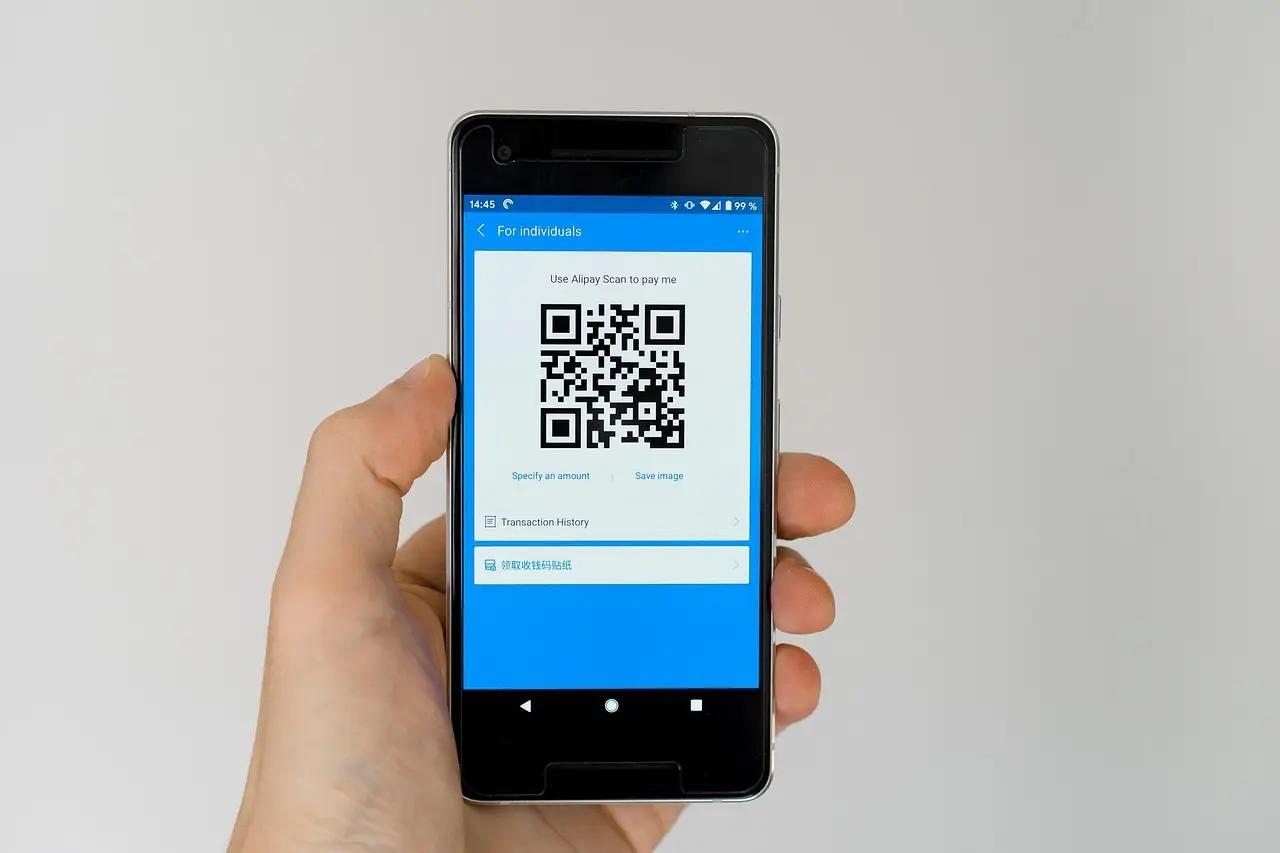
Once your request is approved, you will receive a QR code. This code contains the instructions for your phone to download the eSIM profile.
It is usually sent via email or shown in the carrier's app. Some carriers send it as a PDF attachment to your registered email address.
Scanning the code
- Open your phone's settings and go to the eSIM or Mobile Plan section.
- Tap "Add eSIM" or "Scan QR Code".
- Point your camera at the QR code on the screen or paper.
- Wait for the phone to download the profile. This may take a minute.
- Once downloaded, name the profile so you can identify it easily.
- Toggle the eSIM on to activate it. You should see signal bars appear.
The QR code is very important. Do not share it with anyone else. It is like a key to your mobile connection.
If you lose it, you will need to contact customer support to get a new one. Keep a screenshot of the code in a secure folder until the activation is complete.
Manage your eSIM profile
After installation, you can manage your eSIM just like a physical SIM. You can turn it on or off or change the default data line.
Switching between SIMs
Most dual-SIM phones let you choose which SIM to use for calls, texts, and data. You can set your eSIM as the primary line for data and your physical SIM for calls.
This is useful if you have a work number on one line and a personal number on the other. You can change these settings anytime in the network menu.
Deleting an eSIM
If you decide to stop using the eSIM, you can delete the profile from your phone settings. This does not cancel your number. It only removes the profile from that specific device.
If you delete the profile, you will usually need to request a new activation code from your carrier. The old QR code typically becomes invalid once the profile is removed.
For instance, a freelancer in Chennai might use an eSIM for a temporary project and delete it when the project ends. This keeps their network settings organized by removing unused profiles.
It helps you stay focused on your active connections. You can then spend more time on other tasks, like learning how to set up UPI Lite for faster small payments without a PIN.
Common issues and how to fix them
Even with a simple process, things can go wrong. Here are a few common problems and how to solve them.
- QR code not scanning: Ensure your camera is clean and the lighting is good. Try scanning from a different distance. If it still fails, try typing the activation code manually if the carrier provides one.
- Profile not downloading: Check your internet connection. Make sure your phone has a stable connection to the carrier's server. Restart your phone and try again.
- No signal after activation: Wait a few minutes. If the signal does not appear, try toggling Airplane Mode on and off. This forces the phone to reconnect to the network.
- Verification failed: Check your details and connection. Retake the process if necessary. Do not rush. A clear communication is better than a fast one.
If you continue to face issues, contact the carrier's customer support. They can guide you through the process or reset the request.
Do not try to install the same QR code on multiple devices. It will not work. Each QR code is unique to one specific activation request.
Quick checklist before you activate
- Confirm your phone supports eSIM in the settings menu.
- Update your phone to the latest software version.
- Ensure your phone has enough battery charge before starting.
- Keep your identity documents ready as per carrier requirements.
- Ensure you have a stable Wi-Fi or data connection.
- Note down the QR code validity period and install it before it expires.
- Back up your phone data in case of any unexpected issues.
Frequently asked questions
Can I use eSIM and a physical SIM at the same time?
Yes, most modern dual-SIM phones allow you to use both. One slot is for the physical SIM, and the other is for the eSIM. You can switch between them for calls and data as needed.
What if I lose my phone with an eSIM active?
Your eSIM is tied to your device. If you lose the phone, the eSIM is lost with it. You will need to contact your carrier to block the number and request a new eSIM profile for your new device.
Is eSIM more secure than a physical SIM?
eSIMs are generally considered more secure because they are embedded in the phone. They cannot be physically removed or swapped easily. This makes it harder for thieves to use your number.
Can I transfer my eSIM to a new phone?
You need to request a new eSIM profile from your carrier for the new device. The process is similar to requesting a new SIM card. You cannot simply copy the file from one phone to another.
Does eSIM cost more than a physical SIM?
There is usually no extra cost for the eSIM technology itself. You pay the standard plan charges. Some carriers might charge a small fee for porting, but this is the same for physical and digital SIMs.
Summary
- eSIM activation is a convenient way to manage your mobile number without visiting a store.
- You need a compatible phone and a stable internet connection.
- The process involves requesting a profile through an app or SMS and scanning a QR code.
- You can manage and switch between eSIM and physical SIMs easily on modern phones.
- Check your phone's compatibility and follow carrier instructions to avoid delays.